
API Reference
Complete parameter definitions, response schemas, feature flags, and error codes for all four Vault Platform Power Platform connector actions.
Actions Overview
| Action | Method | Gateway Route |
|---|---|---|
| Generate Document | POST | /api/gateway/v1/documents/generate |
| Get Document URL | GET | /api/gateway/v1/documents/open |
| Check Workflow Status | GET | /api/gateway/v1/workflows/{workflowId} |
| Download Sealed PDF | GET | /api/gateway/v1/workflows/{workflowId}/pdf |
Generate Document
Renders a PDF from a template and a JSON data payload stored in SharePoint. Returns a download URL and, when a workflow template is configured, a workflowId for tracking progress.
Request Parameters
| Parameter | Required | Type | Description |
|---|---|---|---|
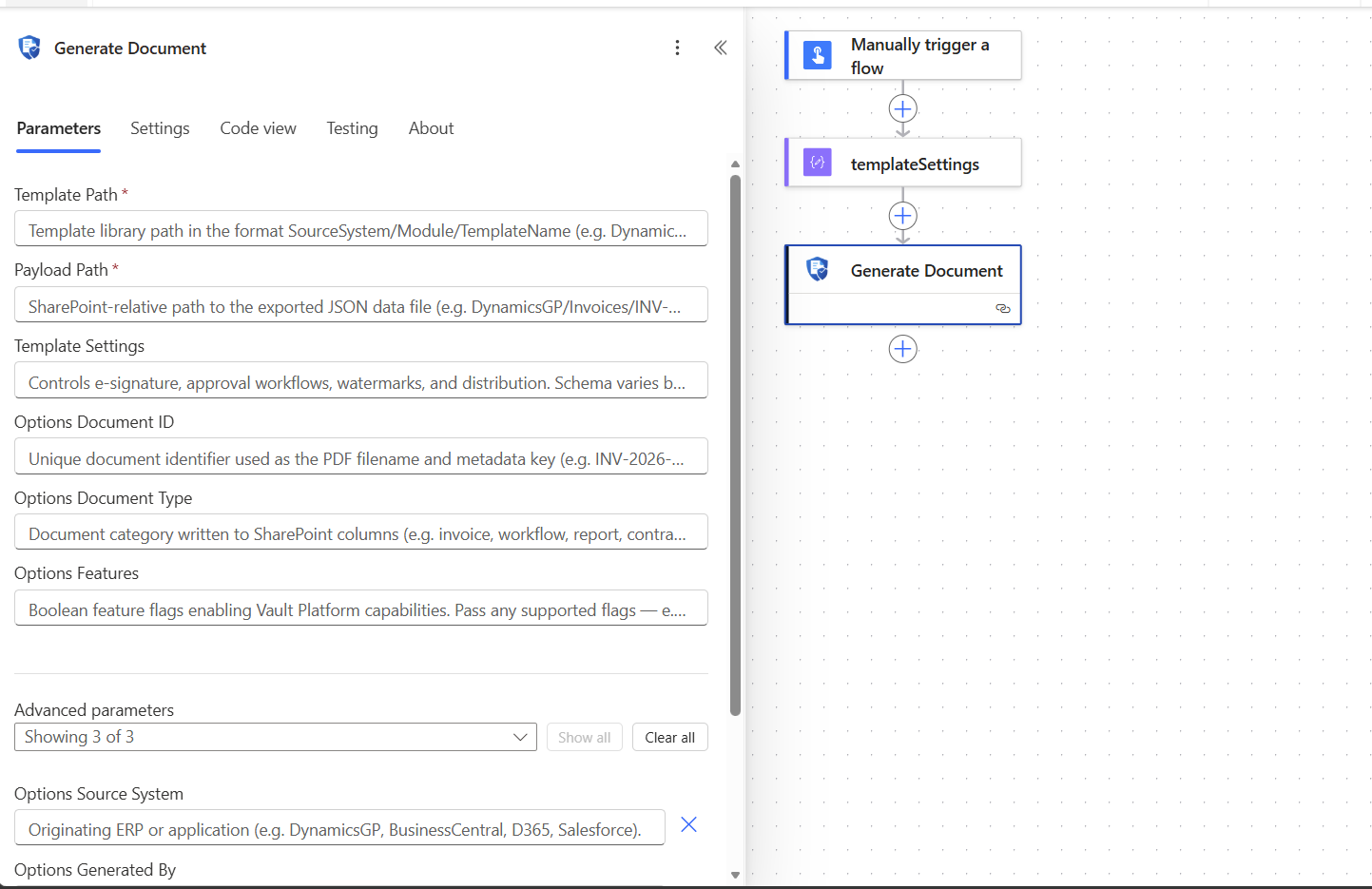
| Template Path | Yes | string | Path to the template in the template library (e.g. DynamicsGP/Workflows/vendor-onboarding.vpdf) |
| Payload Path | Yes | string | SharePoint-relative path to the JSON data file (e.g. DynamicsGP/Workflows/vendor-onboarding-payload.json) |
| Template Settings | No | object | Controls e-signature, approval workflows, watermarks, and distribution. See Template Settings below. |
| Options | No | object | Document metadata and feature flags. See Options below. |
Options
The options object controls document identity, classification, and which Vault Platform features are activated for this render. All sub-fields are optional.
| Field | Type | Description |
|---|---|---|
documentId | string | Unique document identifier - used as the PDF filename and written to SharePoint metadata (e.g. INV-2026-001) |
docType | string | Document category written to SharePoint columns (e.g. invoice, workflow, contract, report) |
sourceSystem | string | Originating ERP or application (e.g. DynamicsGP, BusinessCentral, D365, Salesforce) |
generatedBy | string | Email or identity of the user or service principal that triggered generation |
customColumns | object | Key-value pairs (string values) written to custom SharePoint columns on the generated document item |
features | object | Boolean feature flags. Any flag can be included - see Feature Flags. |
documentId and docType live inside options
In Power Automate, set documentId and docType inside the Options field - not as top-level parameters. Top-level documentId and documentType fields do not exist in this connector.
Feature Flags
Pass any combination of boolean flags inside options.features. Unknown flags are forwarded to the Dispatcher and ignored if not supported.
| Flag | Description |
|---|---|
generatedDocuments | Upload the rendered PDF to the GeneratedDocuments library in SharePoint / Blob Storage |
auditSnapshot | Write a PDFGenerated audit event to the AuditLogs library |
dataRedaction | Apply field-level redaction policy defined in the template |
explainDocument | Capture a machine-readable explanation trace of every render decision. Auto-enabled when vaultESign, dataRedaction, or section508Accessibility is active. |
vaultESign | Trigger electronic signature workflow after generation (requires templateSettings.esign or templateSettings.workflow) |
immutableAudit | Write a tamper-evident audit record to the enterprise audit store |
vaultDelivery | Route the document through the Vault Delivery distribution service |
section508Accessibility | Apply PDF/UA-1 tagging and generate an accessibility compliance trace |
vaultWorkflow | Enable Vault workflow engine integration |
Template Settings
Trigger an approval or review workflow after generation. Recipients receive an email with a link to review the document.
{
  "workflow": {
    "enabled": true,
    "recipients": [
      {
        "email": "[email protected]",
        "displayName": "Finance Manager"
      }
    ],
    "organizationName": "Contoso",
    "message": "Please review and approve this document.",
    "expiresInDays": 7,
    "requireOtp": false,
    "appendElectronicEvidence": true
  }
}| Field | Type | Description |
|---|---|---|
enabled | boolean | Must be true to trigger the workflow |
recipients | array | List of { email, displayName } objects |
organizationName | string | Displayed in the workflow email |
message | string | Custom message shown to recipients |
expiresInDays | integer | Days before the workflow link expires |
requireOtp | boolean | Require one-time passcode for recipient verification |
appendElectronicEvidence | boolean | Attach electronic evidence certificate to the sealed PDF |
Route the document for electronic signature via the Vault eSign engine.
{
  "esign": {
    "enabled": true,
    "signingMode": "sequential",
    "expiresInDays": 14,
    "signers": [
      {
        "email": "[email protected]",
        "displayName": "Jane Smith",
        "role": "Signer",
        "slotIndex": 1
      }
    ],
    "message": "Please sign this agreement."
  }
}| Field | Type | Description |
|---|---|---|
enabled | boolean | Must be true |
signingMode | string | "sequential" (signers sign in order) or "parallel" |
expiresInDays | integer | Days before signature link expires |
signers | array | List of signer objects |
message | string | Message shown to each signer |
Apply a text watermark to every page of the generated PDF.
{
  "watermark": {
    "enabled": true,
    "value": "CONFIDENTIAL",
    "opacity": 0.3
  }
}| Field | Type | Description |
|---|---|---|
enabled | boolean | Must be true |
value | string | Watermark text |
opacity | number | Opacity from 0 (invisible) to 1 (opaque). Default: 0.3 |
Parameters in Power Automate
Full Request Example
{
  "templatePath": "DynamicsGP/Workflows/vendor-onboarding.vpdf",
  "payloadPath": "DynamicsGP/Workflows/vendor-onboarding-payload.json",
  "templateSettings": {
    "workflow": {
      "enabled": true,
      "recipients": [{ "email": "[email protected]", "displayName": "Acme AP" }],
      "organizationName": "Contoso",
      "message": "Please complete vendor onboarding. Account: Vendor_106",
      "expiresInDays": 7,
      "requireOtp": false,
      "appendElectronicEvidence": true
    }
  },
  "options": {
    "documentId": "Vendor_107",
    "sourceSystem": "DynamicsGP",
    "docType": "workflow",
    "generatedBy": "[email protected]",
    "customColumns": { "vendorId": "Vendor1001", "vendorName": "Jane Smith" },
    "features": {
      "generatedDocuments": true,
      "auditSnapshot": true,
      "dataRedaction": true,
      "explainDocument": true,
      "vaultESign": true,
      "immutableAudit": true,
      "vaultDelivery": true
    }
  }
}
Response
Generate Document returns the PDF binary directly - not JSON. Metadata is in the response headers.
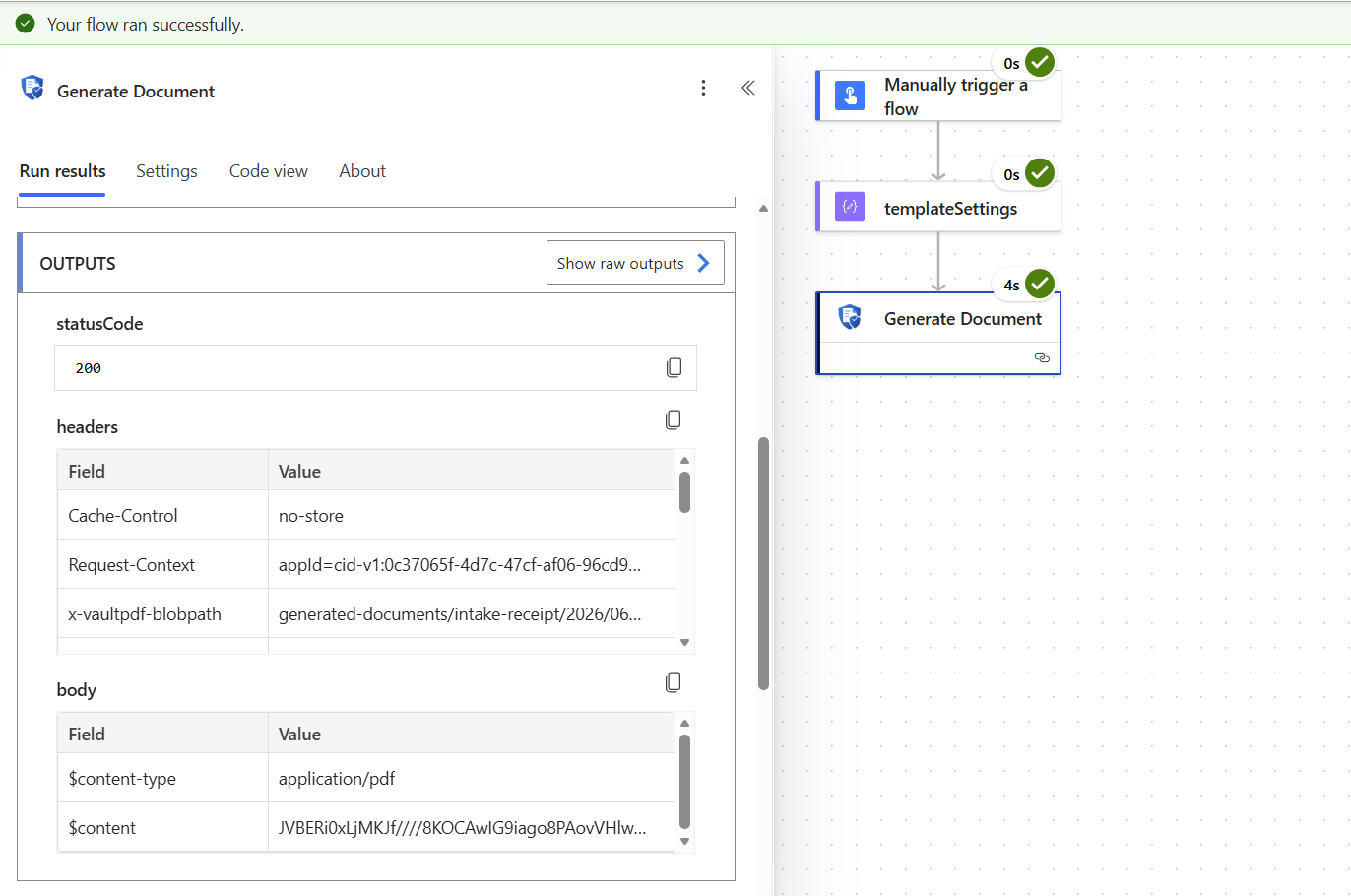
| Response header | Description | Expression in Power Automate |
|---|---|---|
x-vaultpdf-blobpath | Blob path of the stored PDF | outputs('Generate_Document')?['headers']['x-vaultpdf-blobpath'] |
x-vaultpdf-workflowid | Workflow ID - only present when a workflow was started | outputs('Generate_Document')?['headers']['x-vaultpdf-workflowid'] |
x-vaultpdf-correlationid | Unique render ID for support | outputs('Generate_Document')?['headers']['x-vaultpdf-correlationid'] |
The response body is the PDF binary ($content-type: application/pdf). You can pass it directly to Send an email (as attachment) or Create file (SharePoint/OneDrive) actions.
Getting the blob path and workflow ID in your flow
Blob path:   outputs('Generate_Document')?['headers']['x-vaultpdf-blobpath']
Workflow ID: outputs('Generate_Document')?['headers']['x-vaultpdf-workflowid']
Pass the blob path to Get Document URL to retrieve a fresh download link. Pass the workflow ID to Check Workflow Status to poll progress.
Error Responses
| Status | Description | Common Cause |
|---|---|---|
| 400 | Invalid request | templatePath and payloadPath are both required; one is missing or malformed |
| 401 | Authentication failed | Azure AD token acquisition failed - check connection parameters |
| 403 | Access denied | Token tid or aud does not match Dispatcher configuration |
| 404 | Template or payload not found | File does not exist at the specified SharePoint path |
| 500 | Generation failed | Template rendering error - use correlationId when contacting support |
Get Document URL
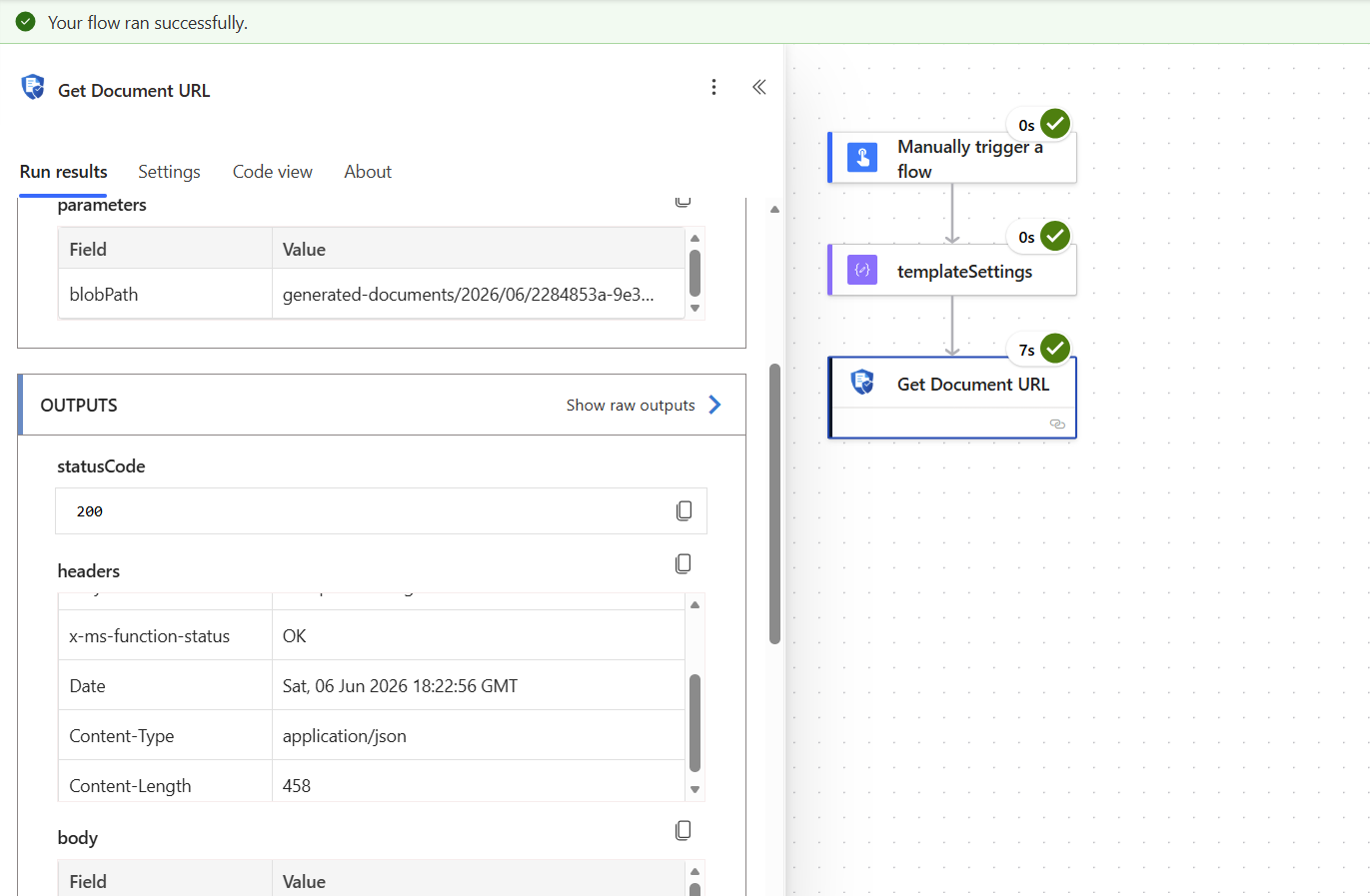
Returns a short-lived (5 minute) signed download URL for a document stored in Blob Storage or SharePoint. Use the documentPath returned by Generate Document.
Parameters
| Parameter | Required | Type | Description |
|---|---|---|---|
| Blob Path | Yes | string | Container-qualified path returned by Generate Document (e.g. generated-documents/2026/06/file.pdf) |
Response
{
  "url": "https://stcontoso.blob.core.windows.net/generated-documents/...?sv=..."
}| Field | Type | Description |
|---|---|---|
url | string | HTTPS signed download URL. Valid for 5 minutes - do not store long-term. |
Link expiry
Download links expire after 5 minutes. Call Get Document URL again each time you need a fresh link. Do not store the URL - store the documentPath instead and generate links on demand.
Error Responses
| Status | Description |
|---|---|
| 401 | Authentication failed |
| 403 | blobPath container not in the allowed list |
| 404 | Document not found at the specified path |
| 500 | SAS URL generation failed (check Dispatcher storage configuration) |
Check Workflow Status
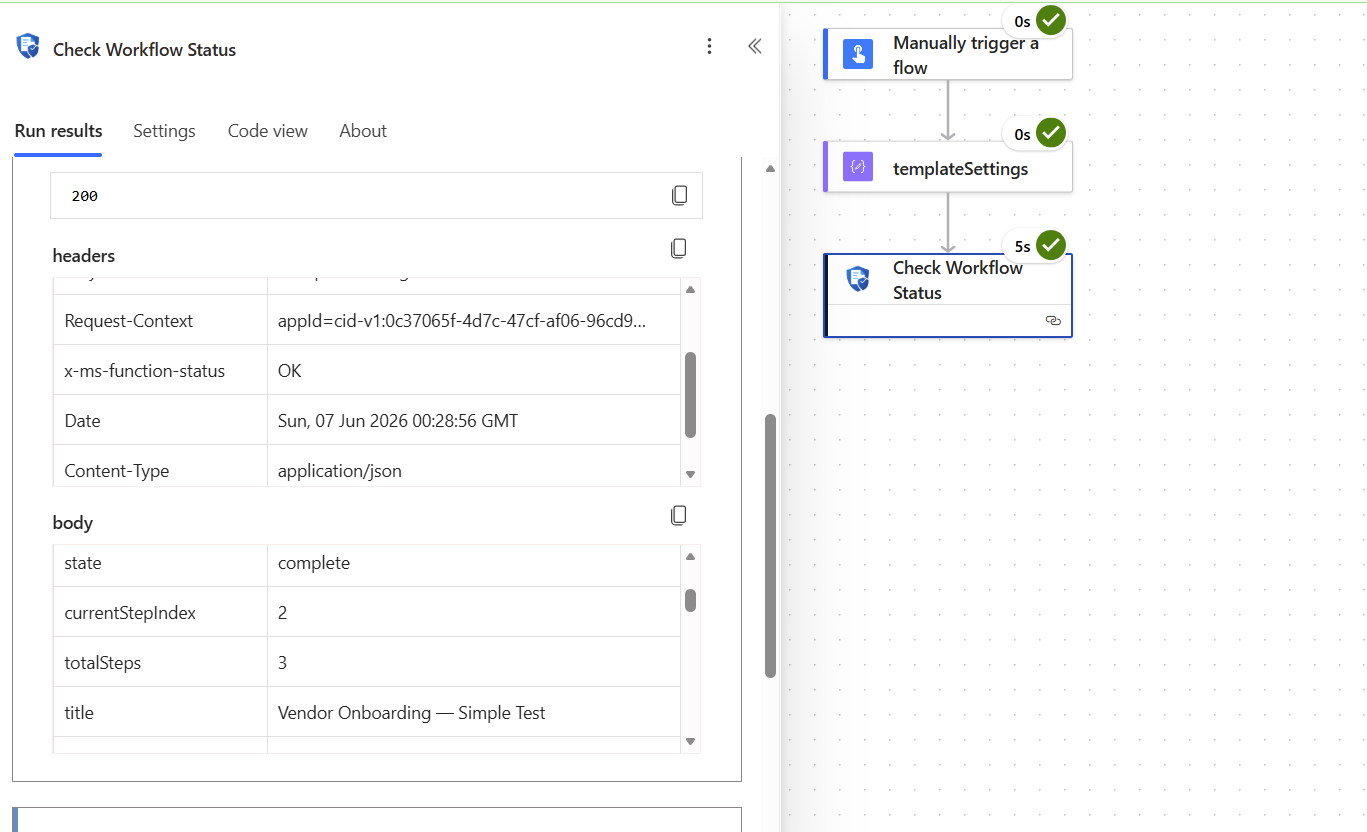
Returns the current state of a document workflow. Poll this action until isComplete or isRejected is true, then call Download Sealed PDF.
Parameters
| Parameter | Required | Type | Description |
|---|---|---|---|
| Workflow ID | Yes | string | The workflowId returned by Generate Document |
Response
{
  "workflowId": "a3f8c201-d4e9-47b2-91c3-556677880001",
  "state": "awaiting_signature",
  "isComplete": false,
  "isRejected": false,
  "currentStep": 1,
  "totalSteps": 2,
  "title": "Vendor Onboarding Workflow"
}| Field | Type | Description |
|---|---|---|
workflowId | string | The workflow ID (as requested) |
state | string | Current state - see state values below |
isComplete | boolean | true when all steps are done and the sealed PDF is available |
isRejected | boolean | true when a signer or approver rejected the document |
currentStepIndex | integer | Index of the current step (1-based) |
totalSteps | integer | Total number of steps in the workflow |
title | string | Display name of the workflow template |
Workflow States
| State | Meaning |
|---|---|
pending | Workflow created, first email not yet sent |
in_progress | Workflow active, awaiting recipient action |
awaiting_signature | Specifically waiting for one or more signatures |
complete | All steps complete - sealed PDF is available |
rejected | A recipient rejected the document - workflow is closed |
Recommended Polling Strategy
| Scenario | Interval | Max iterations |
|---|---|---|
| Administrative approval workflows | Every 10 minutes | 144 (24 hours) |
| E-signature workflows | Every 5 minutes | 288 (24 hours) |
| Time-critical signature requests | Every 2 minutes | 180 (6 hours) |
Do not poll too frequently
Excessive polling contributes toward the Dispatcher's rate limit of 100 requests per 60 seconds per tenant/app. Use delays appropriate to the workflow type.
Error Responses
| Status | Description |
|---|---|
| 401 | Authentication failed |
| 404 | Workflow ID not found or does not belong to this tenant |
| 500 | Dispatcher error retrieving workflow state |
Download Sealed PDF
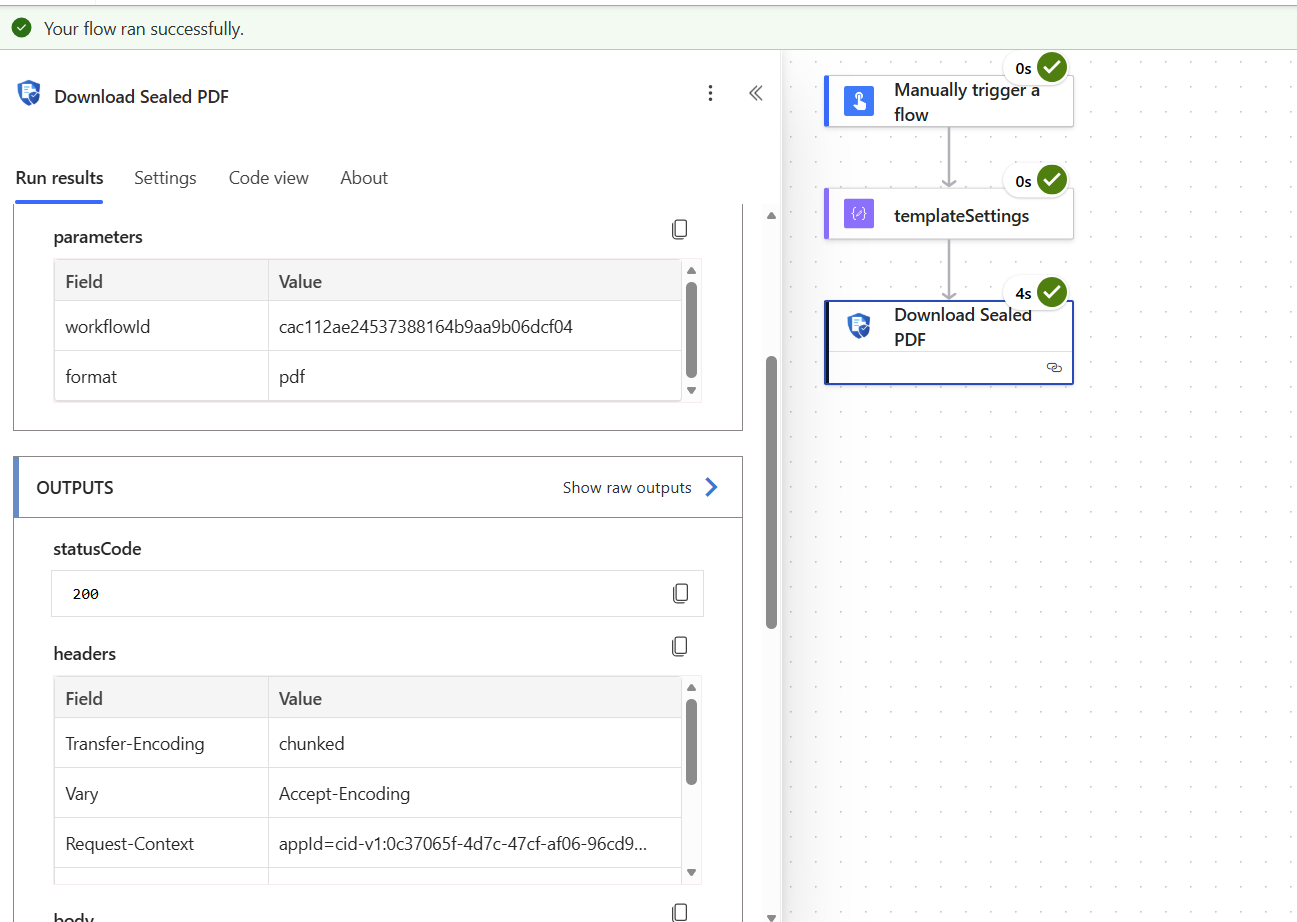
Returns a signed download URL for the completed, countersigned PDF. Only available once isComplete is true on Check Workflow Status.
Parameters
| Parameter | Required | Type | Description |
|---|---|---|---|
| Workflow ID | Yes | string | The workflowId returned by Generate Document |
Response
{
  "downloadUrl": "https://stcontoso.blob.core.windows.net/vault-output/...?sv=..."
}| Field | Type | Description |
|---|---|---|
downloadUrl | string | Signed download URL for the sealed PDF. Valid for 5 minutes. |
What is a sealed PDF?
The sealed PDF includes the signed or approved document content, signature zones with signer identity and timestamps, and - when appendElectronicEvidence is enabled - an evidence certificate with a full audit trail and integrity hash.
Error Responses
| Status | Description |
|---|---|
| 401 | Authentication failed |
| 404 | Workflow not found, not complete, or sealed PDF not yet available |
| 500 | SAS URL generation failed |
Authentication Errors
These errors come from the connector script before the request reaches the Dispatcher.
| Error message | Cause | Fix |
|---|---|---|
Connection parameter 'tenantId' is missing | Policy template instances not applied | Redeploy the connector; verify 5 policyTemplateInstances in downloaded apiProperties.json |
Connection parameter 'clientId' is missing | Same as above | Same fix |
Azure AD rejected the token request (invalid_request): AADSTS90002... | Tenant ID wrong or has whitespace | Delete and recreate the connection; enter the tenant GUID with no spaces |
Invalid Client ID or Client Secret | Wrong clientId or clientSecret | Verify in Azure Portal → App registrations → Certificates & secrets |
App not authorised for client_credentials | App Registration not configured for client credentials | Check App Registration API permissions or contact Dispatcher administrator |
Invalid OAuth Scope | Scope format wrong | Use exactly api://<dispatcher-app-client-id>/.default |
Azure AD tenant not found | Tenant GUID is wrong | Verify tenant ID in Azure Portal → Azure Active Directory → Overview |
Authentication timed out | Network issue reaching login.microsoftonline.com | Confirm outbound connectivity from Power Platform to Azure AD |
Frequently Asked Questions
Yes. A connection created in a Power Platform environment is available to all flows and apps in that environment. You only need to create it once per environment.
Yes. Each connection stores its own Dispatcher URL and credentials. Create one connection per environment and point each to the corresponding Dispatcher instance.
Power Platform stores securestring connection parameters encrypted at rest. The value is never visible in flow run history, action outputs, or logs after the connection is created.
Yes. The features field accepts any boolean key - unknown flags are forwarded to the Dispatcher and activated if the Dispatcher version you are running supports them. You never need to update the connector to use new feature flags.
The connector runs a small C# script (script.csx) on every call - it acquires an Azure AD token and forwards the request to the Dispatcher. This script has a 5-second CPU execution limit, but that limit only covers the script's own code - time spent waiting for the Azure AD token response and the Dispatcher to generate the PDF does not count against it. The practical ceiling is the Power Automate flow step timeout of 120 seconds. Most document generations complete in 5–20 seconds depending on template complexity.
Both are returned in response headers, not the body. Read them with Power Automate expressions:
- Blob path:
outputs('Generate_Document')?['headers']['x-vaultpdf-blobpath'] - Workflow ID:
outputs('Generate_Document')?['headers']['x-vaultpdf-workflowid']
Workflow completion depends on recipient action (signing or approving). The workflow remains in_progress or awaiting_signature until all recipients act. Check the expiresInDays setting in your templateSettings - if the window elapses without action, isRejected may become true due to expiry.
isRejected becomes true and the workflow closes. No further signing or approval is possible on that document. A new document must be generated and a new workflow started.
Only after state is complete on Check Workflow Status. Calling it before that returns 404. Always check the workflow status in a Do Until loop before calling Download Sealed PDF.
Connector Setup & Configuration
IT admin guide for the Vault Platform Power Platform connector. Covers App Registration setup, connection parameter reference, and environment management.
Send an Invoice via Secure Delivery
Render an invoice from the Receivables VaultPack and deliver it to a customer through a time-limited secure portal link using VaultDelivery.