
Connector Setup & Configuration
IT admin guide for the Vault Platform Power Platform connector. Covers App Registration setup, connection parameter reference, and environment management.
Architecture
The Vault Platform Connector uses a single-tenant, service-to-service architecture. Each organization's Power Platform environment connects directly to its own Dispatcher - there is no shared Refract Logic infrastructure in the data path.
Power Automate Flow
      │
      ▼
Vault Platform Connector (Power Platform)
      │  reads 5 connection parameters
      │  acquires access token from Microsoft Entra ID
      ▼
Customer-hosted Vault Dispatcher (Azure Function App)
      │  validates JWT claims (iss, aud, tid)
      ▼
Vault Platform Services
  ├── PDF Generation
  ├── e-Signature Processing
  ├── Approval Workflows
  ├── Audit & Compliance
  └── Document Storage (Blob / SharePoint)
Data sovereignty: OAuth tokens are issued by the customer's own Microsoft Entra ID tenant. Documents and business data remain within the customer's Azure subscription at all times.
Prerequisites
Before creating a connection:
- Vault Platform Dispatcher deployed and running in the customer's Azure subscription
- Microsoft Entra ID App Registration created for the Power Platform connector gateway entry (see below)
- Power Platform environment with System Administrator or Environment Maker permissions
Step 1: Create the App Registration
The connector authenticates using a dedicated App Registration in the customer's Microsoft Entra ID tenant.
Reuse an existing App Registration
If the customer already has a Dispatcher gateway entry for Business Central or another ERP, you can create a new gateway entry on the same Dispatcher using a new App Registration, or reuse an existing one if the scope of access is appropriate.
Open Azure Portal
Go to portal.azure.com → Microsoft Entra ID → App registrations → New registration.
Register the Application
| Field | Value |
|---|---|
| Name | Vault Platform Power Platform Connector |
| Supported account types | Accounts in this organizational directory only |
| Redirect URI | Leave blank |
Click Register.
Note the IDs
From the Overview page, copy:
- Application (client) ID → used as
clientIdconnection parameter - Directory (tenant) ID → used as
tenantIdconnection parameter
Create a Client Secret
Go to Certificates & secrets → Client secrets → New client secret.
Set an expiry (recommended: 12–24 months). Copy the Value immediately - it is only shown once.
This becomes the clientSecret connection parameter.
Note the OAuth Scope
The scope for client_credentials is:
api://<dispatcher-app-client-id>/.defaultWhere <dispatcher-app-client-id> is the Dispatcher's App Registration client ID (the one that exposes the API), not necessarily the connector's own client ID.
Confirm this with your Dispatcher administrator.
Register with the Dispatcher
Provide the new App Registration's client ID to the Dispatcher administrator to add as an authorised gateway entry.
Step 2: Create a Connection
Once the connector is deployed, it appears in the Power Automate custom connectors list and flow makers can create connections.
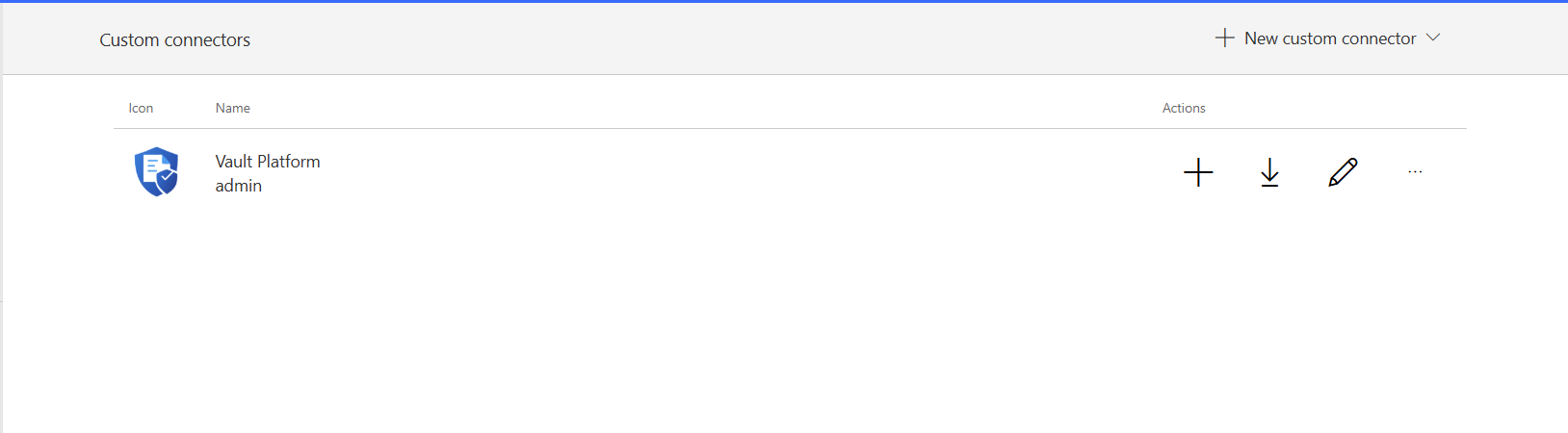
Flow makers create connections using the five credential fields.
Open Power Automate
Go to make.powerautomate.com → Data → Connections → + New connection.
Find and Select Vault Platform
Search for Vault Platform. Select the connector.
Enter the Five Fields
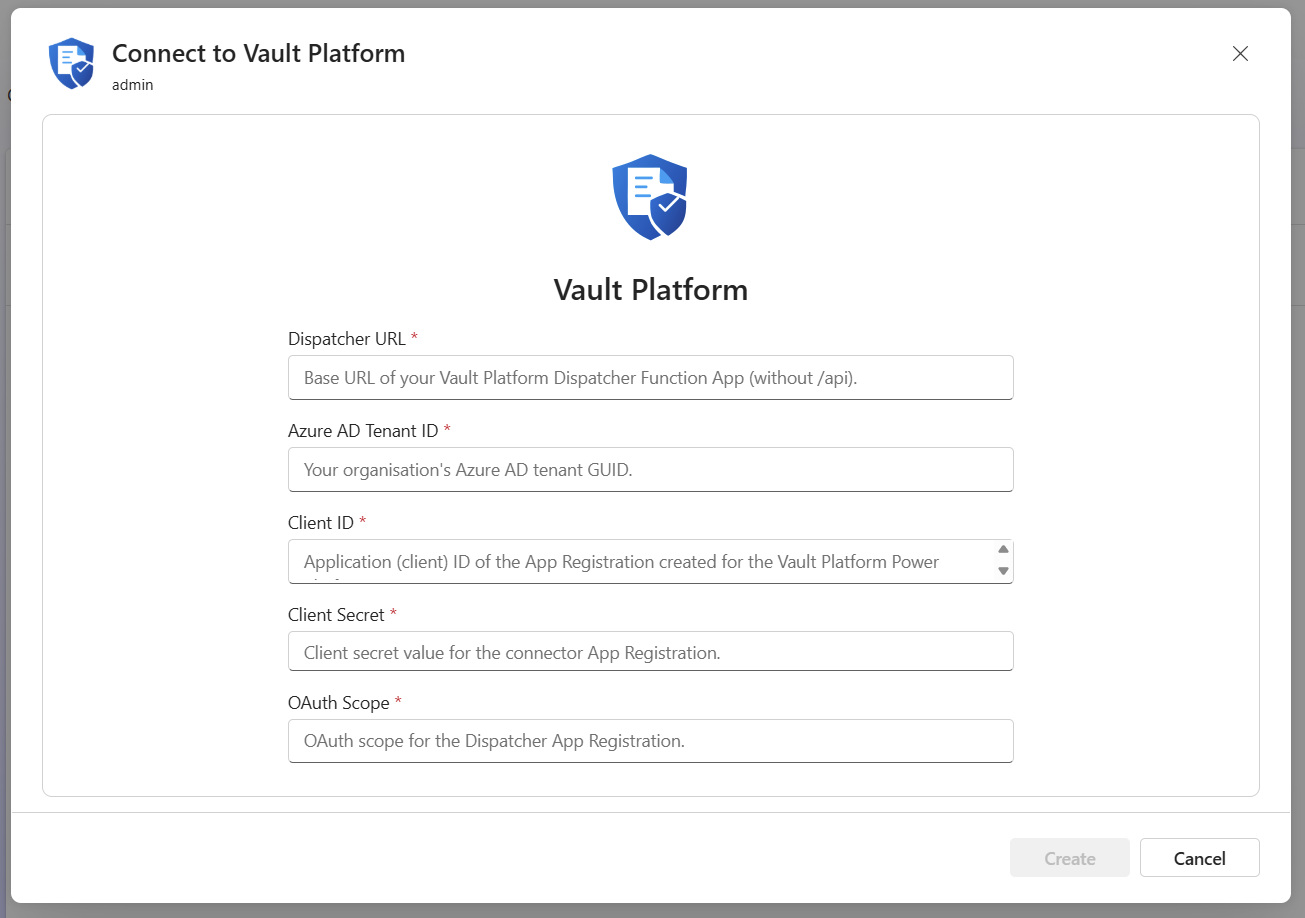
| Parameter | Description | Example |
|---|---|---|
| Dispatcher URL | Dispatcher Function App base URL - no /api suffix | https://func-vaultpdf-contoso.azurewebsites.net |
| Microsoft Entra Tenant ID | Organization's Microsoft Entra ID tenant GUID | c49962a1-53d3-4af8-8d5d-35f34cd0be9c |
| Client ID | App Registration (client) ID | 9575c697-a0c8-44be-b5d4-20f62473e872 |
| Client Secret | App Registration client secret value | (stored encrypted - not visible after entry) |
| OAuth Scope | Dispatcher App Registration scope | api://<dispatcher-app-client-id>/.default |
Dispatcher URL must not include /api
Enter https://func-vaultpdf-contoso.azurewebsites.net - the connector appends /api/ to all request paths automatically. If you include /api in the URL the requests will fail with 404.
Click Create
No sign-in window appears. The connection is created immediately using the client credentials you entered. A green checkmark confirms the connection is ready.
Connection Parameter Reference
| Parameter | Type | Required | Notes |
|---|---|---|---|
hostUrl | string | Yes | Dispatcher Function App base URL. No trailing slash. No /api suffix. |
tenantId | string | Yes | Microsoft Entra ID tenant GUID. Format: xxxxxxxx-xxxx-xxxx-xxxx-xxxxxxxxxxxx |
clientId | string | Yes | App Registration Application (client) ID GUID |
clientSecret | securestring | Yes | Client secret value. Stored encrypted at rest in Power Platform. |
scope | string | Yes | OAuth scope for client_credentials. Format: api://<dispatcher-app-id>/.default |
Authentication Model
The Vault Platform Connector uses Microsoft Entra ID client credentials (service-to-service authentication).
Unlike delegated OAuth connectors, there is no interactive user sign-in or browser popup. During connection setup, administrators provide the Microsoft Entra ID application details and the connector acquires access tokens automatically for each API request.
The clientSecret is never forwarded to the Dispatcher - it is used only to acquire the token and is then stripped from the request.
JWT Validation
Before processing any request, the Dispatcher validates:
- Issuer (iss) - Token must be issued by the authorised Microsoft Entra ID tenant.
- Audience (aud) - Token must be intended for the Dispatcher's application registration.
- Tenant ID (tid) - Token must belong to the authorised tenant.
All three validations must succeed. Tokens issued for another tenant or another application are rejected before request processing begins.
Tenant Isolation
A token that passes issuer and audience validation but contains a different tenant ID is rejected.
This prevents cross-tenant access and ensures only identities from the authorised Microsoft Entra tenant can invoke the customer-hosted Dispatcher.
Execution Model
The connector performs token acquisition and request forwarding through a lightweight execution layer.
The execution layer has a 5-second CPU limit; however, time spent waiting for Microsoft Entra ID token issuance or Dispatcher processing does not count against this limit.
In practice, the effective limit is the Power Automate action timeout (typically 120 seconds). Most document generation operations complete within 5-20 seconds depending on template complexity and payload size.
Customer-Hosted Processing
The connector never processes document content.
All document rendering, workflow execution, delivery orchestration, and audit processing occur within the customer-hosted Dispatcher environment. The connector acts solely as an authenticated gateway between Power Platform and the Dispatcher API.
Dispatcher Environment Variables
The Dispatcher Function App must have these environment variables configured:
| Variable | Description | Example |
|---|---|---|
JWT_REQUIRED | Must be "true" - enforces JWT on all gateway routes | true |
JWT_ISSUER | Microsoft Entra ID token issuer URL | https://login.microsoftonline.com/{tenantId}/v2.0 |
JWT_AUDIENCE | Expected aud claim (Dispatcher App Registration client ID or api:// URI) | api://9575c697-... |
AZURE_TENANT_ID | Authorised tenant GUID - checked against token tid claim | c49962a1-... |
JWT_JWKS_URI | Optional - auto-derived from JWT_ISSUER if not set | (leave blank) |
JWT_REQUIRED must be true
If JWT_REQUIRED is not set to "true", a transient failure reaching the Microsoft Entra ID JWKS endpoint could allow unauthenticated requests to proceed to the tid check. Always set JWT_REQUIRED=true in production.
Multiple Environments
Create a separate connection for each environment (dev, test, prod). Each connection can point to a different Dispatcher URL while sharing the same App Registration, or use separate App Registrations per environment.
| Environment | Dispatcher URL | Connection Name |
|---|---|---|
| Development | https://func-vaultpdf-dev.azurewebsites.net | Vault Platform – Dev |
| Test | https://func-vaultpdf-test.azurewebsites.net | Vault Platform – Test |
| Production | https://func-vaultpdf-prod.azurewebsites.net | Vault Platform – Prod |
Deployment Checklist
Before going to production:
- App Registration created and client secret noted
- Dispatcher administrator has registered the App Registration as a gateway entry
- Dispatcher env vars set:
JWT_REQUIRED=true,JWT_ISSUER,JWT_AUDIENCE,AZURE_TENANT_ID - Connector deployed via PAC CLI - 5
policyTemplateInstancesconfirmed in downloadedapiProperties.json - Test connection created and green checkmark confirmed
- Generate Document action tested end-to-end with a real template and payload
- Error handling implemented in flows (Configure run after → failed)
- Client secret expiry date calendared for renewal
Troubleshooting
| Error | Cause | Fix |
|---|---|---|
Connection parameter 'tenantId' is missing | Policy template instances not applied during deployment | Redeploy connector; verify downloaded apiProperties.json has 5 policy instances |
Azure AD rejected the token request (invalid_request): AADSTS90002... | Tenant ID is wrong or has whitespace | Delete and recreate the connection, entering the tenant GUID carefully with no spaces |
Invalid Client ID or Client Secret | Wrong clientId or clientSecret | Verify in Azure Portal → App registrations → Certificates & secrets |
Invalid OAuth Scope | Scope format wrong | Use api://<dispatcher-app-client-id>/.default exactly |
403 Service configuration error | AZURE_TENANT_ID not set on Dispatcher | Set AZURE_TENANT_ID in Dispatcher Function App environment variables |
404 (empty body, x-ms-function-status: OK) | Dispatcher URL includes /api | Remove /api from the Dispatcher URL in the connection |
401 from Dispatcher | Token aud or tid mismatch | Confirm JWT_AUDIENCE and AZURE_TENANT_ID match the App Registration used in the connection |
Next Steps
- Overview & Quick Start - Build your first flow
- API Reference - Complete parameter definitions and response schemas
- Trust Center - Security controls and compliance documentation
- Privacy Policy - Data processing and protection
- Terms of Service - Legal terms of use
Vault Platform Connector for Power Platform
Connect Power Automate and Power Apps to your organization's Vault Platform Dispatcher. Generate PDFs, send documents for e-signature and approval workflows, and retrieve sealed documents - without writing code.
API Reference
Complete parameter definitions, response schemas, feature flags, and error codes for all four Vault Platform Power Platform connector actions.