
Vault Platform Connector for Power Platform
Connect Power Automate and Power Apps to your organisation's Vault Platform Dispatcher. Generate PDFs, send documents for e-signature and approval workflows, and retrieve sealed documents - without writing code.
Overview
The Vault Platform Connector for Microsoft Power Platform lets Power Automate flows and Power Apps generate PDFs, trigger e-signature and approval workflows, and retrieve sealed documents - all connected to your organisation's self-hosted Vault Platform Dispatcher.
Key characteristics:
- No coding required - pre-built actions in Power Automate and Power Apps
- Self-hosted - connects to your organisation's own Dispatcher, not a shared service
- Service-to-service authentication - uses Microsoft Entra ID client credentials; no user sign-in popups
- Data sovereignty - documents and business data never leave your Azure tenant
A Different Kind of Connector
Most document connectors are tightly coupled to specific document types. Adding a new document type means updating the connector, redeploying it, and rebuilding flows. Vault Platform is architected differently.
Why Vault Platform works differently
In Vault Platform, the payload drives behaviour and the template drives rendering. The connector has no knowledge of document types - it simply delivers your payload to the Dispatcher, which resolves the correct template, features, and workflow from the schema. This means you can introduce new document types, templates, and workflows without ever touching the connector or rebuilding flows.
| Traditional Document Connectors | Vault Platform Connector | |
|---|---|---|
| Actions | One action per document type | Four generic platform actions for everything |
| New document type | Connector update + flow rebuild required | New template in the library - no connector change |
| Connector changes | Frequent, tied to business logic | None - the connector is stable |
| Processing model | Schema-specific per operation | Payload-driven - schema lives in the Dispatcher |
| Integration lifespan | Brittle; breaks on document type changes | Future-proof - flows survive template evolution |
The four connector actions cover the entire document lifecycle regardless of how many document types your organisation manages:
| Action | What it does |
|---|---|
| Generate Document | Render any PDF from any template with any payload |
| Check Workflow Status | Poll any approval or signature workflow |
| Download Sealed PDF | Retrieve any completed signed document |
| Get Document URL | Get a fresh download link for any stored document |
Authentication Model
The Vault Platform Connector uses Microsoft Entra ID client credentials (service-to-service authentication).
Unlike delegated OAuth connectors, there is no interactive user sign-in or browser popup. During connection setup, administrators provide the Microsoft Entra ID application details and the connector acquires access tokens automatically for each API request.
Tenant Isolation
Before processing any request, the Dispatcher validates three JWT claims - issuer (iss), audience (aud), and tenant ID (tid). All three must match. A token that passes issuer and audience validation but contains a different tenant ID is rejected, preventing cross-tenant access.
Flow runs an action
    │
    ├── Power Platform reads connection parameters
    │     (Dispatcher URL, Tenant ID, Client ID, Client Secret, Scope)
    │
    ├── Connector requests Microsoft Entra ID token
    │     POST login.microsoftonline.com/{tenantId}/oauth2/v2.0/token
    │     grant_type=client_credentials
    │
    ├── Microsoft Entra ID returns Bearer token
    │     (iss, aud, tid claims validated by Dispatcher)
    │
    └── Request forwarded to Dispatcher with Bearer token
          Dispatcher validates claims - processes request
The Client Secret is stored as an encrypted secret in Power Platform - it is never visible in flow run history, logs, or outputs.
Capabilities

| Action | Description | Common Use |
|---|---|---|
| Generate Document | Render a PDF from a template and data payload. Supports e-signature, approval workflows, watermarks, and feature flags | Invoice generation, contract creation, onboarding docs |
| Get Document URL | Retrieve a short-lived (5 min) signed download URL for a stored document | Send download links in emails, display in Power Apps |
| Check Workflow Status | Poll the current state of a signature or approval workflow | Monitor progress; drive Do Until loops |
| Download Sealed PDF | Retrieve the final countersigned PDF once a workflow is complete | Archive, email to customer, upload to SharePoint |
Prerequisites
IT Admin Setup Required
Before a flow maker can create a connection, an IT admin must complete the Connector Setup & Configuration steps.
The flow maker needs these five values from their IT admin:
| Value | Example |
|---|---|
| Dispatcher URL | https://func-vaultpdf-contoso.azurewebsites.net |
| Microsoft Entra Tenant ID | c49962a1-53d3-4af8-8d5d-35f34cd0be9c |
| Client ID | 9575c697-a0c8-44be-b5d4-20f62473e872 |
| Client Secret | (provided securely - never share via email) |
| OAuth Scope | api://<dispatcher-app-client-id>/.default |
Quick Start
Create a Connection
Open Power Automate
Go to make.powerautomate.com and sign in.
Navigate to Connections
In the left sidebar go to Data → Connections. Click + New connection.
Find the Vault Platform Connector
Search for Vault Platform. Select the connector from the results.
Enter the Five Credential Fields
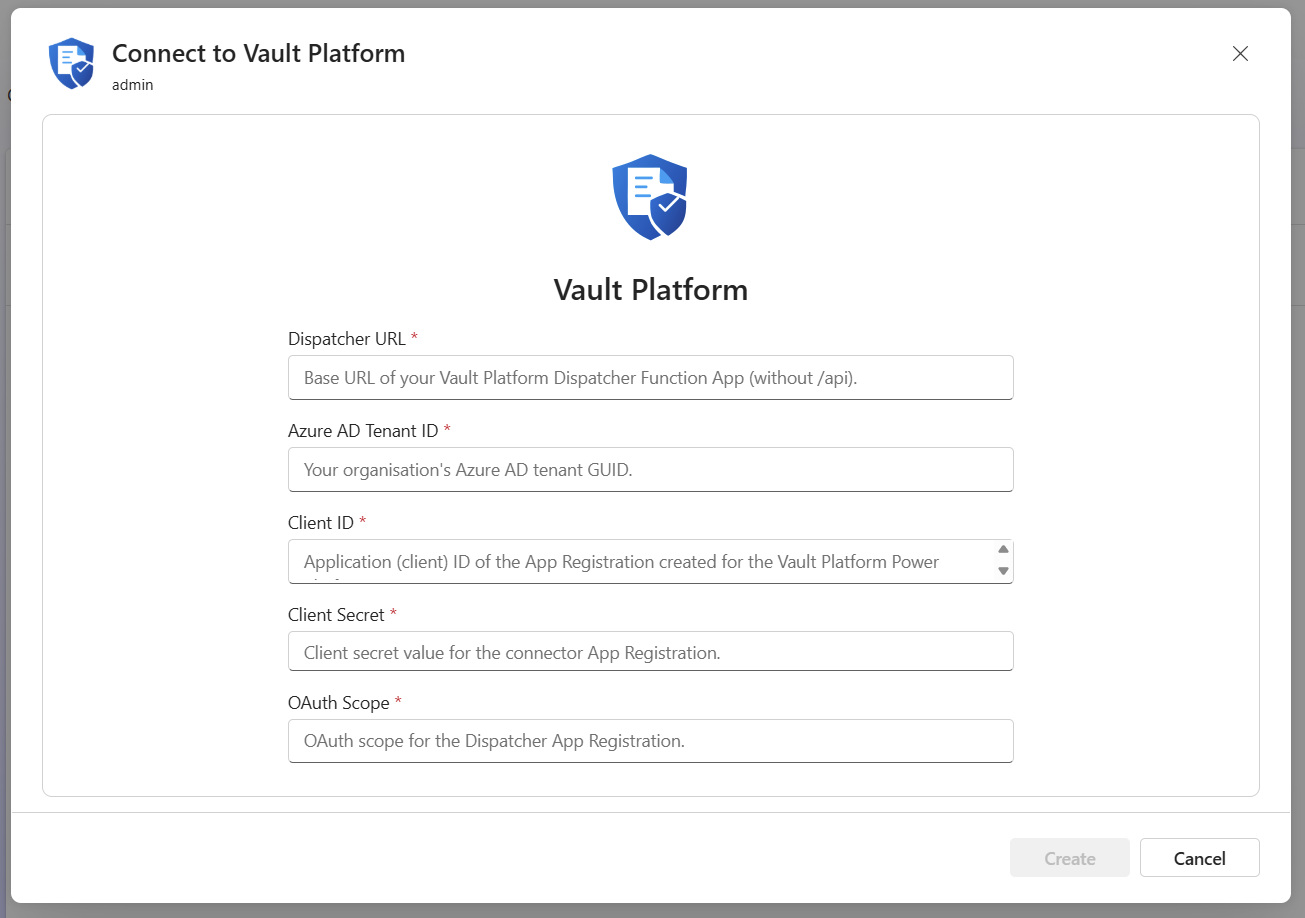
| Field | What to enter |
|---|---|
| Dispatcher URL | Base URL of the Dispatcher Function App - no /api suffix |
| Microsoft Entra Tenant ID | Your organisation's tenant GUID |
| Client ID | App Registration client ID |
| Client Secret | App Registration client secret value |
| OAuth Scope | api://<dispatcher-app-client-id>/.default |
No trailing /api in Dispatcher URL
Enter https://func-vaultpdf-contoso.azurewebsites.net - not https://func-vaultpdf-contoso.azurewebsites.net/api. The /api prefix is handled automatically.
Click Create
No browser sign-in window appears. The connection is created immediately. A green checkmark confirms it is ready.
Common Flow Patterns
Generate an invoice PDF and email a download link to the customer.
Trigger: When a record is created (Dataverse – Sales Order)
Condition: Status = Approved

Action: Generate Document
  templatePath: "BC/Sales/SalesInvoice.vpdf"
  payloadPath:  "payloads/[Order Number].json"
  options: {
    "documentId": "[Order Number]",
    "docType": "invoice",
    "sourceSystem": "BusinessCentral",
    "generatedBy": "[email protected]",
    "features": {
      "generatedDocuments": true,
      "auditSnapshot": true
    }
  }

Action: Send an email
  To:      [Customer Email]
  Subject: Invoice [Order Number]
  Body:    Your invoice is ready: [downloadUrl from Generate Document]
Generate a contract PDF and route it for electronic signature. Poll until signed, then archive the sealed document.
Trigger: When a record is created (Dataverse – Contract)

Action: Generate Document
  templatePath: "Legal/Contracts/ServiceAgreement.vpdf"
  payloadPath:  "payloads/contracts/[Contract ID].json"
  templateSettings: {
    "workflow": {
      "enabled": true,
      "recipients": [{ "email": "[Signer Email]", "displayName": "[Signer Name]" }],
      "message": "Please review and sign contract [Contract ID]",
      "expiresInDays": 7
    }
  }
  options: {
    "documentId": "[Contract ID]",
    "docType": "contract",
    "features": {
      "generatedDocuments": true,
      "auditSnapshot": true,
      "vaultESign": true,
      "immutableAudit": true,
      "explainDocument": true
    }
  }

Action: Store Workflow ID in Dataverse record
  workflowId: [Workflow ID from Generate Document]

Action: Do Until  isComplete = true  OR  isRejected = true
  ├── Delay: 5 minutes
  └── Check Workflow Status
        Workflow ID: [Workflow ID]

Action: Condition  isComplete = true
  Yes → Download Sealed PDF (Workflow ID)
         Upload to SharePoint (downloadUrl)
  No  → Send rejection notification
Generate a purchase requisition and route it for management approval.
Trigger: When a record is created (Dataverse – Purchase Requisition)

Action: Generate Document
  templatePath: "Procurement/PurchaseRequisition.vpdf"
  payloadPath:  "payloads/requisitions/[Req ID].json"
  templateSettings: {
    "workflow": {
      "enabled": true,
      "recipients": [{ "email": "[email protected]", "displayName": "Finance Manager" }],
      "message": "Please approve requisition [Req ID]",
      "expiresInDays": 3
    }
  }
  options: {
    "documentId": "[Req ID]",
    "docType": "workflow",
    "features": {
      "generatedDocuments": true,
      "auditSnapshot": true,
      "vaultESign": true,
      "immutableAudit": true
    }
  }

Action: Update record - store Workflow ID

Action: Do Until  isComplete = true  OR  isRejected = true
  ├── Delay: 10 minutes
  └── Check Workflow Status (Workflow ID)

Action: Condition  isComplete = true
  Yes → Update record: Status = Approved
         Download Sealed PDF → attach to record
  No  → Update record: Status = Rejected
         Send notification to requestor
Security Model
Every API call to the Dispatcher is validated against three JWT claims:
| Claim | What it validates |
|---|---|
aud | Token was issued for the Dispatcher's App Registration - rejects tokens for other apps |
iss | Token was issued by your Microsoft Entra ID tenant - rejects tokens from foreign identity providers |
tid | Token belongs to the authorised tenant - prevents cross-tenant access |
The clientSecret connection parameter is stored as a securestring in Power Platform - encrypted at rest and never visible in flow run history, logs, or action outputs.
Rate Limiting
To prevent runaway loops from overwhelming the Dispatcher:
- Limit: 100 requests per 60 seconds per tenant/app combination
- When exceeded:
429 Too Many Requestswith aRetry-Afterheader - Scope: In-memory per function instance
Next Steps
- Connector Setup & Configuration - IT admin App Registration setup and connection creation
- API Reference - Full parameter definitions, response schemas, error codes
Security & Legal
- Trust Center - Security controls, compliance posture, and data handling - share with your security or procurement team
- Privacy Policy - How data is processed and protected within your Azure tenant
- Terms of Service - Legal terms governing use of Vault Platform
Troubleshooting - Vault Platform for Dynamics 365 Sales
Diagnose and resolve common Vault Platform CRM issues. Security role errors, environment variable misconfigurations, plugin failures, SharePoint connectivity, workflow enforcement, and batch operation problems.
Connector Setup & Configuration
IT admin guide for the Vault Platform Power Platform connector. Covers App Registration setup, connection parameter reference, and environment management.